Broken links send visitors to pages or resources that no longer work. They can appear when a page is deleted, a URL changes, an external website goes offline, or a link is entered incorrectly. On larger websites, these problems can be difficult to find manually.
A broken link checker can scan pages and identify URLs that return errors. Some tools also show where each link appears, making it easier to find and fix the problem. This guide compares online checkers, website crawlers, and browser extensions, explains how to verify reported errors, and shows how to fix broken links.
Contents
Part 1. Best Tools to Find Broken Links on a Website
These tools differ in how they run and what they can check. The table below compares their type, checking scope, and main limitations.
| Tool | Type | Checking Scope | Main Advantage | Main Limitation |
|---|---|---|---|---|
| Ahrefs Broken Link Checker | Online checker | Website / URL | Shows referring pages and anchor text | Some reported 404s need verification |
| Broken Link Scan | Online checker | Website | Free scan for up to 500 pages | Scanning can be slow |
| Screaming Frog SEO Spider | Desktop crawler | Website | Detailed crawl data and Inlinks | Free version limited to 500 URLs |
| PowerMapper SortSite | Website auditing tool | Website | Checks links and broader site quality | Slower than simpler checkers |
| Tilda Broken Link Checker | Online checker | Website / URL | Simple online checking | Timeout and waiting restrictions in testing |
| Website SEO Checker | Chrome extension | Current page | Checks internal and external links on the open page | Slow; does not crawl the whole website |
Ahrefs Broken Link Checker for Quick Website Checks
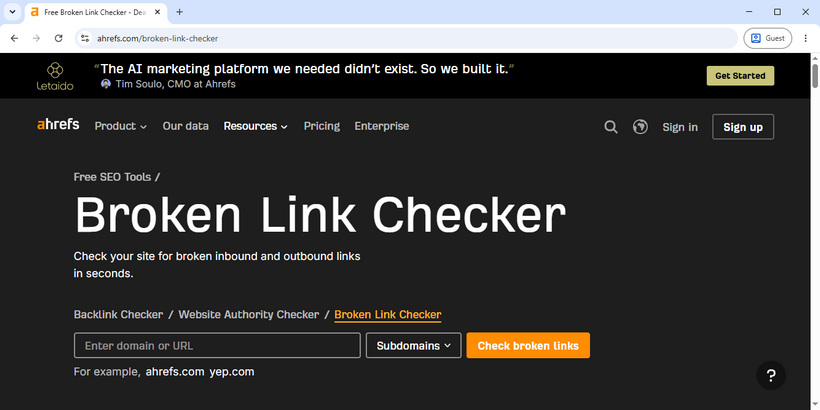
Ahrefs Broken Link Checker is a convenient starting point if you want to check a domain or a specific URL without installing desktop software. It provides information about broken links found on a website and links pointing to unavailable pages on that site.
One useful part of its report is the source information. For a reported broken link, you can see details such as the referring page and anchor text. This helps you identify which page contains the link instead of having to search through the website manually.
In my test, some URLs flagged by Ahrefs could still be opened in a regular browser, while others returned a genuine 404 error. Treat the results as potential problems and verify questionable URLs before changing them.
Best for: Quick website checks when you also need information about the pages containing reported broken links.
Broken Link Scan for Small Websites
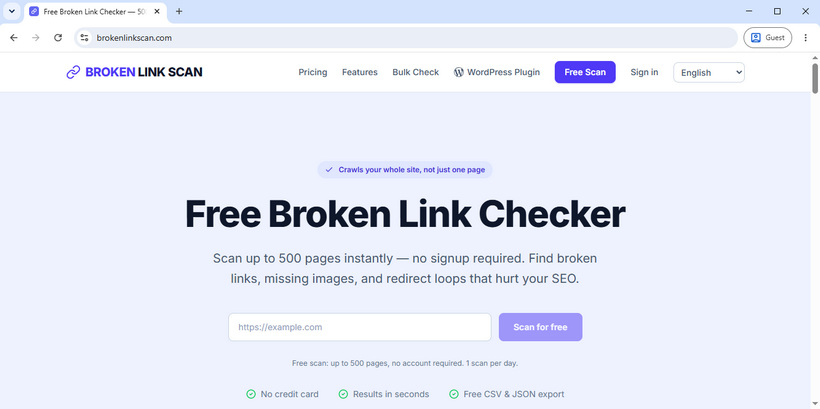
Broken Link Scan is an online tool for checking links across an entire website. Enter your website URL to start a scan. The crawler follows internal links and checks the URLs it discovers, including external links.
Its report is useful because it connects a broken URL with the page where it was found. You can review the source page, anchor text, and reported status instead of receiving only a list of unavailable destinations.
In my test, the URLs reported as 404 were indeed unavailable when checked manually. The scan took longer than some of the other online checkers, but the results were useful for identifying actual broken links.
Free scan limit: The free version allows up to 500 pages per scan. This makes it a practical option for smaller websites, although the scanning speed may be a consideration if you need to check a larger site.
Best for: Free online scans of smaller websites when you want to identify broken links and their source pages.
Screaming Frog SEO Spider for Detailed Link Audits
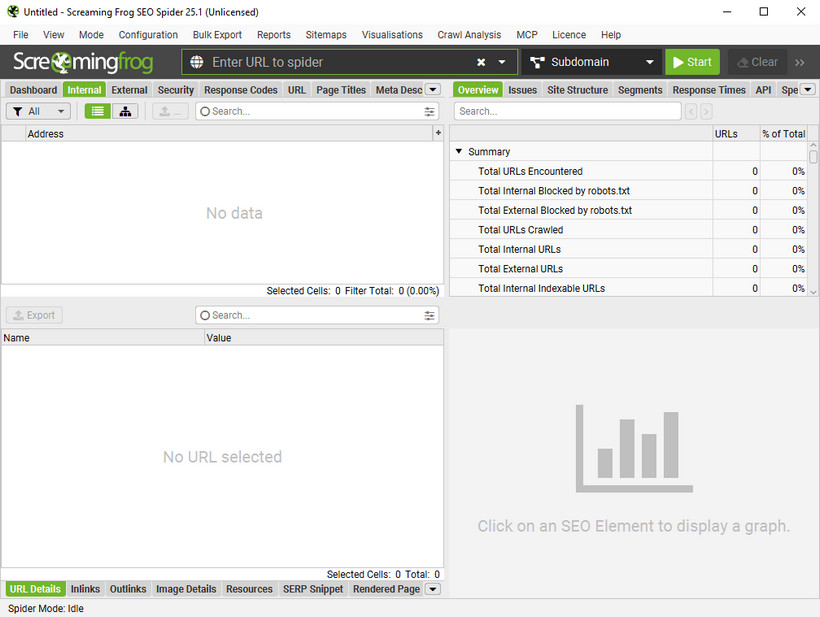
Screaming Frog SEO Spider is a desktop website crawler that gives you more control over a site audit. Instead of checking only the URL you enter, it follows links from the starting page and collects information about the URLs it discovers.
To find broken links:
- Open SEO Spider and enter your website URL.
- Click Start and wait for the crawl to finish.
- Open the Response Codes tab.
- Select the Client Error (4XX) filter to review URLs returning 4xx responses.
- Select a URL and open the Inlinks panel to see which pages link to it.
The Inlinks panel is especially useful when you need to fix internal links. It shows the source pages linking to the selected URL, so you can go directly to the relevant page in your content management system.
Free version: Screaming Frog allows you to crawl up to 500 URLs per crawl. In my test, it took approximately four minutes to crawl 500 URLs.
Some external URLs reported as 404 in my test could still be opened normally in a browser. This is worth checking before treating every reported error as a confirmed broken link.
Best for: Website owners and SEO professionals who want detailed crawl data and an efficient way to trace broken internal links.
PowerMapper SortSite for Website Quality Audits
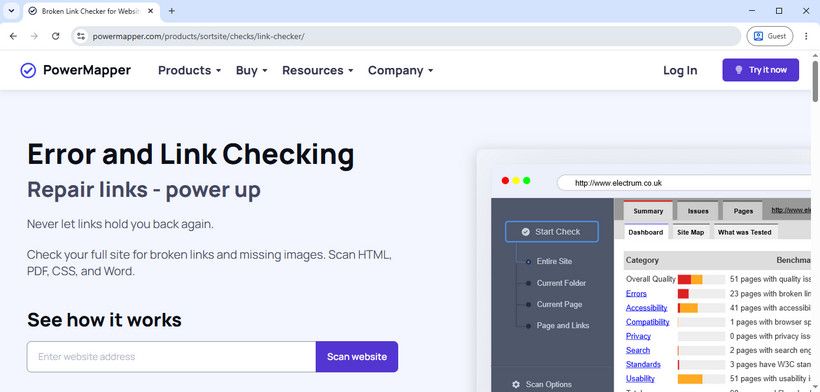
SortSite is more than a broken link checker. It scans a website for several types of quality issues, including broken links, accessibility problems, browser compatibility, web standards, and search-related issues.
In my test, the report separated findings into categories such as Accessibility, Compatibility, Errors, Search, Standards, and Usability. The Errors section showed whether the crawl had found broken links or other errors, while the other sections provided a broader view of website quality.
The scan took longer than some of the simpler online tools. However, its wider report can be useful if you want to check more than link availability in one audit.
Best for: Website owners who want a broader quality review alongside broken link detection. If your only goal is to find 404 links quickly, a dedicated checker or crawler may be more convenient.
Tilda Broken Link Checker for Simple URL Checks
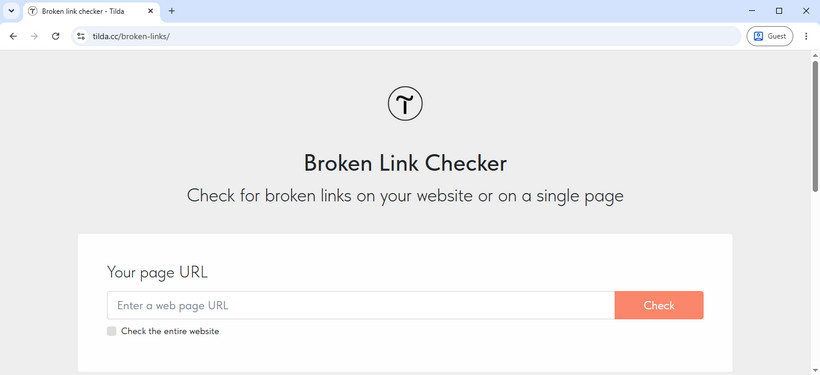
Tilda's Broken Link Checker supports both single-page checks and whole-website scans. This makes it useful when you want to inspect one page without crawling the entire site.
The interface is straightforward: enter a page URL or choose the option to check the entire website, then review the reported URLs and errors.
In my test, the checker sometimes returned a timeout before completing the scan. I also found that another check could not be started immediately after the previous one; the tool required a five-minute wait.
These limitations make it less convenient for repeated checks or larger audits. Still, it can be worth trying when you need a simple online check and do not want to install software.
Best for: A simple check of one page or a basic website scan, provided the scan completes successfully.
Website SEO Checker for Browser-Based Link Checks
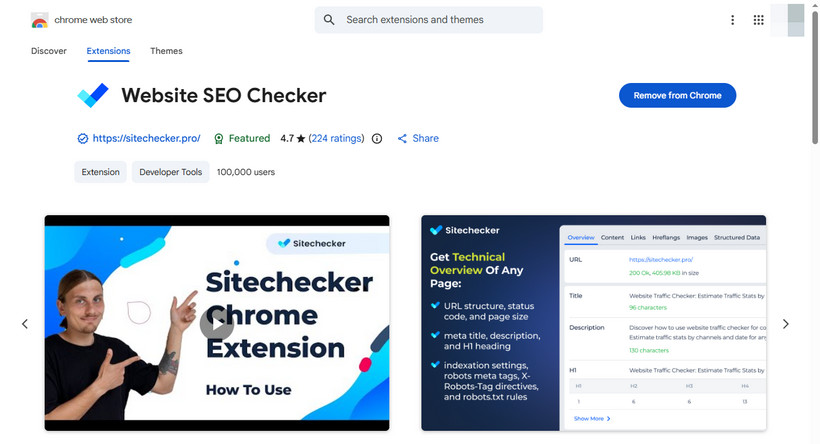
A browser extension can be more convenient than a full website crawler when you only need to inspect the page currently open in your browser.
The Website SEO Checker Chrome extension checks links on the current page, including internal and external URLs. It also provides other SEO information, such as page titles, meta descriptions, headings, canonical tags, hreflang attributes, images, and structured data.
The main limitation is its checking scope: it does not replace a crawler that follows links throughout an entire website. The link-checking process was also relatively slow in my test.
Use this type of extension when you are reviewing an individual page or checking links while editing content. For a site-wide audit, use a dedicated crawler instead.
Part 2. How to Find Broken Links with Google Search Console
Google Search Console can help you find pages on your website that Google encountered but could not access. It is useful for checking Google's crawling and indexing data, but it is not a complete broken link checker.
To review reported 404 pages:
- Open Google Search Console and select your website property.
- Go to Indexing → Pages.
- Look under the Not indexed section for the Not found (404) reason.
- Open the report to review example URLs that returned a 404 response when Google crawled them.
- Select a URL and use URL Inspection if you need to investigate its current status.
A 404 in this report means Google received a not-found response when it requested that URL. It does not necessarily mean the page is still broken now. The issue may have been fixed after Google's last crawl.
There is another important distinction: Search Console reports URLs that Google has discovered and attempted to crawl. It does not systematically test every link on every page of your website. A dedicated broken link checker is more suitable when you want to scan internal and external links across your site.
Use both sources for different purposes: a crawler to find links that currently return errors, and Search Console to review problems Google has encountered.
Part 3. How to Verify and Fix Broken Links
A reported error should be checked before you change the link. Once confirmed, find the source page and choose the appropriate fix.
Verify Reported 404 Links
Before fixing a reported broken link, check whether the destination is actually unavailable. Some websites restrict automated crawlers or respond differently to browser requests, which can lead to incorrect 404 reports.
In my tests, both Ahrefs and Screaming Frog flagged a Trustpilot URL as 404, even though it opened normally in a browser. I checked Trustpilot's robots.txt file and found that many crawlers were disallowed. This suggested that crawler access restrictions might be relevant, but did not confirm the exact cause of the reported status.
If a URL is reported as 404 but works in your browser:
- Open the URL directly in a browser.
- Check the HTTP status and error details in the tool's report.
- Try another HTTP checker if the results differ.
A noindex directive is different from a 404: it tells search engines not to index a page, but does not mean the page is unavailable.
Find the Page Containing a Broken Link
Once you have confirmed that a URL is genuinely broken, the next step is to find every page that links to it. This is especially important for internal links because the problem may appear in several articles, navigation menus, or other parts of your site.
The exact process depends on the tool:
- Ahrefs: Review the referring page and anchor text shown in the broken link report.
- Screaming Frog: Select the broken URL under Response Codes, then open the Inlinks panel to see the pages linking to it.
- Broken Link Scan: Use the source-page information in the scan report to identify where the URL appears.
Pay attention to the anchor text as well as the source URL. The anchor text helps you locate the link within a long article and understand what destination the link was intended to provide.
If several pages link to the same broken URL, make a list of all the source pages before editing. Fixing only one occurrence will leave the other broken links in place.
For external links, you may not be able to repair the destination yourself. You can update the link to a relevant alternative or remove it if no suitable replacement exists.
How to Fix Broken Links
Not every broken link needs the same solution. Choose the fix based on whether the destination has moved, the URL was entered incorrectly, or the content is no longer available.
Update Incorrect URLs
If a link contains a typo or points to the wrong address, edit the source page and replace it with the correct URL.
For example, if an article links to:
https://example.com/guide-to-urls
but the correct page is:
https://example.com/guides/urls
update the hyperlink directly. There is no need to create a redirect if the destination URL itself is already correct and available.
Redirect Moved or Deleted Pages
If a page has moved to a new URL and there is a relevant replacement, set up a permanent 301 redirect from the old address to the new one.
For example:
https://example.com/old-guide/ → https://example.com/new-guide/
This allows visitors and search engines requesting the old URL to reach the replacement page. Update your internal links to point directly to the new URL as well, rather than relying on the redirect indefinitely.
Do not redirect every deleted page to your homepage. A redirect should lead to a relevant replacement. If no equivalent content exists, returning a proper 404 or 410 response may be more appropriate.
Remove Links to Unavailable Pages
If the destination has been permanently removed and there is no useful replacement, remove the hyperlink or replace it with another relevant resource.
For example, an old article might link to a product page that is no longer available. If the product has no successor and there is no suitable alternative, keeping the link may only send readers to an error page.
After making changes, run another check or open the affected pages manually to confirm that the links now lead to the intended destinations.
Frequently Asked Questions
How can I find broken links on my website for free?
Use free tools such as Broken Link Scan or Screaming Frog SEO Spider. Both offer limited free scans: up to 500 pages with Broken Link Scan and 500 URLs per crawl with Screaming Frog.
Can I find broken links without crawling the entire website?
Yes. Use Tilda Broken Link Checker to check a single URL, or the Website SEO Checker Chrome extension to inspect links on the current page. Neither method checks all pages across your website.
Why does a broken link checker show a 404 error for a working page?
Some websites restrict automated crawlers or respond differently to browser requests. Bot protection, access restrictions, and temporary server errors can cause inaccurate results. Check the URL manually before treating it as broken.
Can Google Search Console find all broken links?
No. Google Search Console reports URLs Google has discovered and encountered errors with. It does not systematically check every internal and external link on your website. Use a website crawler for a more complete audit.
Do broken links affect SEO?
Broken links can hurt user experience and make it harder for search engines to discover your pages. However, not every 404 needs fixing. If a page has been permanently removed and has no relevant replacement, a 404 or 410 response may be appropriate.