
Hyperlinks in Microsoft Word let you connect text or images to websites, files, email addresses, and specific locations within a document. Whether you're creating a clickable website link, linking to another file, or helping readers navigate a long document, Word provides several ways to do it.
This guide explains how to choose the right hyperlink type, create and edit links, manage bookmarks, and fix common hyperlink problems.
Contents
How to Choose the Right Hyperlink Type in Word
Before inserting a hyperlink, consider where you want it to take the reader. Word supports several link types, and the right choice depends on your purpose.
| What you want to do | Hyperlink type |
|---|---|
| Open a website | Website URL |
| Open another Word document, PDF, or file | File hyperlink |
| Open an email draft | Email address |
| Jump to a chapter or section | Heading link |
| Jump to a specific paragraph or position | Bookmark link |
| Make a picture clickable | Image hyperlink |
Two distinctions are especially useful when choosing a link:
- Heading vs. Bookmark: Use a heading link when you want to jump to an existing document heading. Use a bookmark when you need to mark a specific position, including a location that isn't formatted as a heading.
- Local file vs. shared file: A link to a file on your computer may only work on that computer or through an accessible file path. If other people need to open the file, use a shared location such as OneDrive or SharePoint and make sure they have permission.
How to Create a Hyperlink in Word
You can insert hyperlinks into selected text, images, or other document elements. The steps below cover the most common types.
Link to a Website
To make text open a website when clicked:
- Open your Word document and select the text you want to turn into a hyperlink.
- Press Ctrl + K on Windows or Command + K on Mac. You can also go to Insert > Link.

- In the hyperlink dialog box, select Existing File or Web Page if that option is shown.
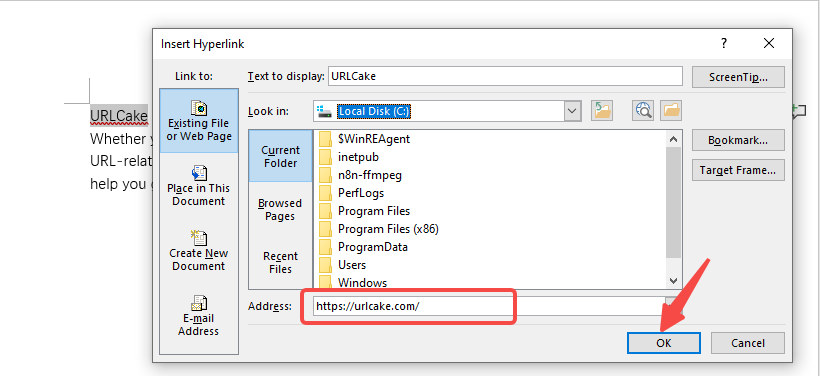
- Enter the website URL in the Address field.
- Check the display text and select OK.
The selected text becomes a clickable link. For example, instead of displaying a long URL, you can use descriptive text such as "Visit our website."
Link to Another Word Document or File
You can link to another Word document, PDF, spreadsheet, or other file. This is useful when you want readers to open a related document without placing its full contents in the current file.
- Select the text you want to use as the link.
- Press Ctrl + K or go to Insert > Link.
- Choose the option to link to an existing file.
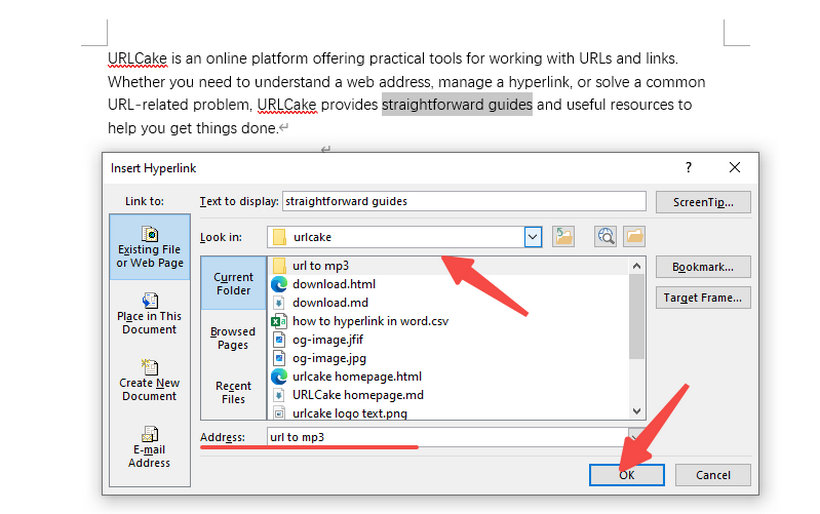
- Browse to and select the target file.
- Confirm the display text and select OK.
The selected text now links to the file.
Link to an Email Address
An email hyperlink opens a new message in the user's default email application or configured mail handler. You can also include a subject line.
- Select the text you want to use as the email link.
- Press Ctrl + K or go to Insert > Link.
- Choose Email Address.
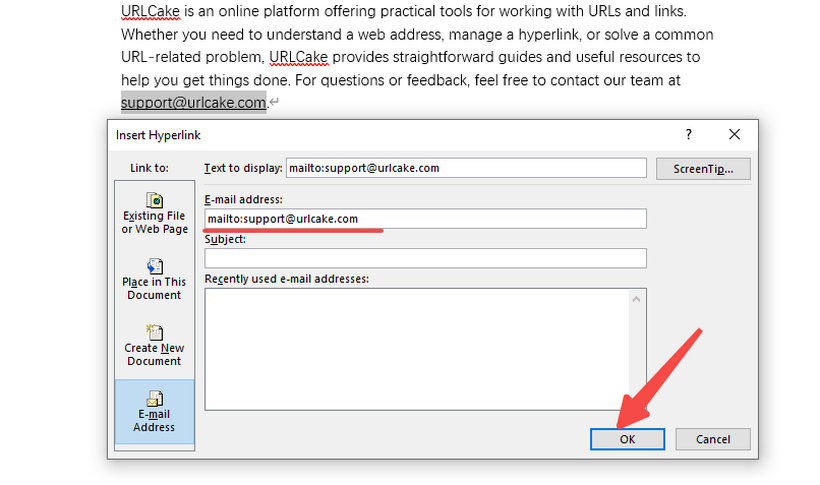
- Enter the recipient's email address.
- Add a subject if needed.
- Select OK.
When someone clicks the link, Word opens an email draft with the recipient and any specified subject filled in. The message is not sent automatically.
Turn an Image into a Hyperlink
You can make an image clickable so readers can open a website or another destination by selecting it.
- Insert an image into your Word document.
- Select the image.
- Press Ctrl + K or go to Insert > Link.
- Enter the destination URL or select an existing file.
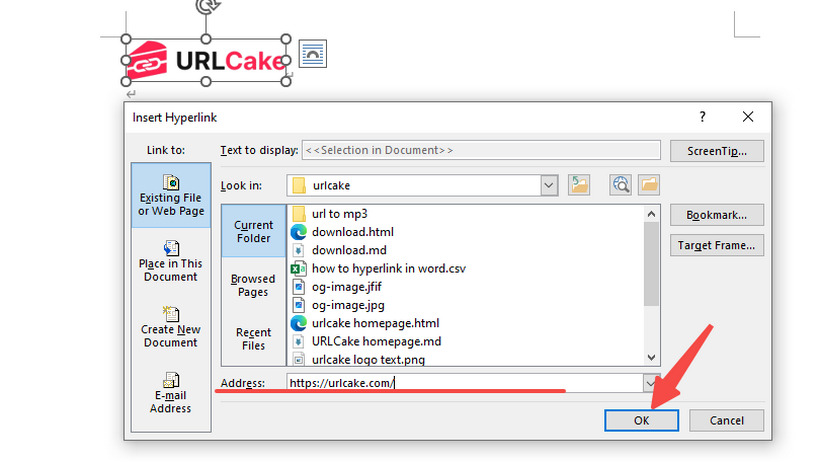
- Select OK.
The image now acts as a hyperlink. Readers can click it to open the linked destination.
Create a Hyperlink Using a Keyboard Shortcut
The quickest way to insert a hyperlink in Word is to use the keyboard shortcut:
- Windows: Ctrl + K
- Mac: Command + K
Select the text or image first, then use the shortcut to open the hyperlink dialog box. Enter the destination and confirm to create the link.
You can also use this shortcut to edit an existing hyperlink.
How to Edit or Rename a Hyperlink in Word
You don't need to delete and recreate a hyperlink every time you want to change it. Word lets you update its display text, destination, and appearance separately.
Change the Display Text
Display text is the clickable wording readers see in the document. You can change it without changing the destination URL.
- Right-click the hyperlink.
- Select Edit Hyperlink.
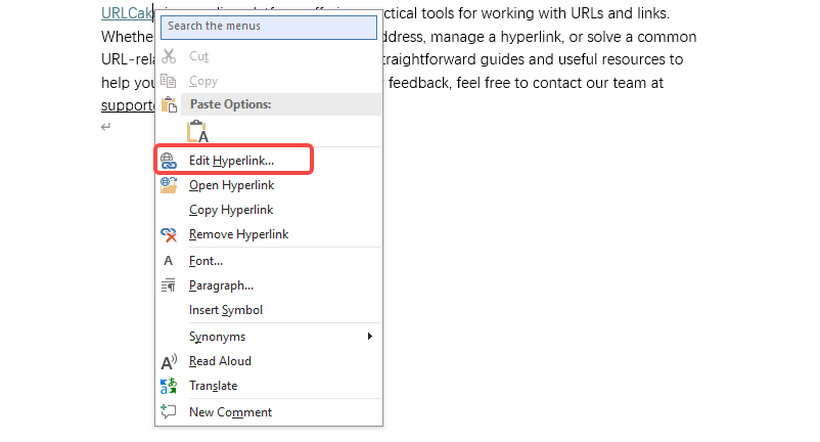
- Change the text in the Text to display field.
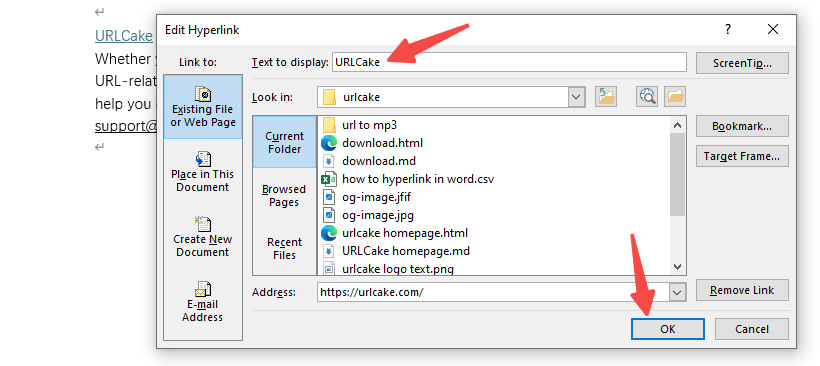
- Keep the existing address unchanged.
- Select OK.
For example, you can change the displayed URL https://urlcake.com/ to descriptive text such as "Visit URLCake" while keeping the original destination unchanged.
Change the Hyperlink Address
If a website URL or file location changes, update the destination instead of creating a new hyperlink.
- Right-click the existing hyperlink.
- Select Edit Hyperlink.
- Replace the address in the Address field.
- Leave the display text as it is if you don't want to change the visible wording.
- Select OK.
The link will now point to the updated destination.
Remember: Changing the display text does not change the hyperlink address. Likewise, changing the address does not automatically change the text shown in the document.
Change the Appearance of a Hyperlink
Word typically formats hyperlinks with a distinct font color and an underline. You can change these formatting options to match your document.
To change the appearance of one hyperlink:
- Select the hyperlink text.
- Open the Home tab.
- Use the Font Color, Underline, and other font formatting options to adjust its appearance.
To change the default appearance of hyperlinks throughout the document, modify the Hyperlink style in the Styles pane. You can also adjust the FollowedHyperlink style to change how visited links appear.
Changing the style is more useful when you want consistent formatting across multiple hyperlinks. Formatting an individual link is better when you only need to adjust one instance.
How to Hyperlink Within the Same Word Document
Internal hyperlinks help readers navigate long documents, such as reports, manuals, proposals, and research papers. You can link to an existing heading or create a bookmark for a more specific position.
Link to a Heading
If your document uses Word's built-in heading styles, you can create a hyperlink that jumps directly to a heading.
- Select the text you want to make clickable.
- Press Ctrl + K or go to Insert > Link.
- Choose Place in This Document.
- Select the heading you want to link to.
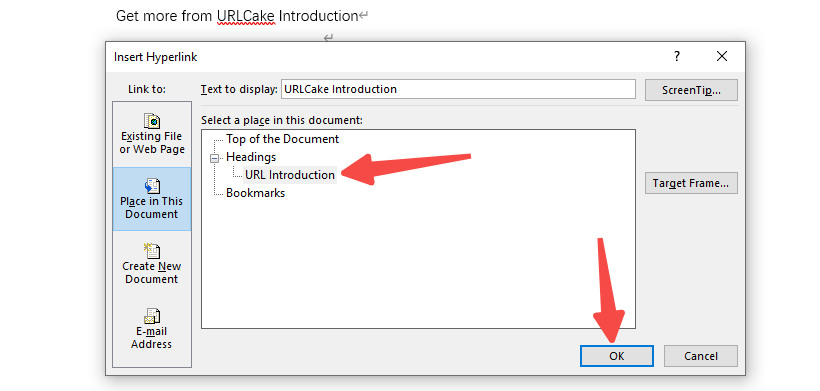
- Select OK.
Clicking the hyperlink takes you to the selected heading.
Create and Link to a Bookmark
A bookmark marks a specific location in a Word document. You can use it to create an internal hyperlink to a paragraph, a section, or another position that isn't necessarily a heading.
Step 1: Create a Bookmark
- Place the cursor at the target position, or select the text you want to mark.
- Go to Insert > Bookmark.
- Enter a name for the bookmark.
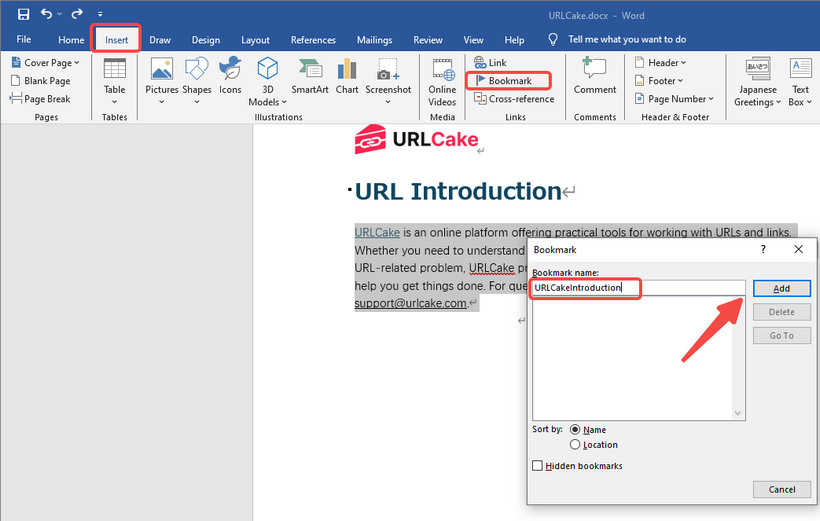
- Select Add.
Step 2: Link to the Bookmark
- Select the text you want to use as the hyperlink.
- Press Ctrl + K or go to Insert > Link.
- Choose Place in This Document.
- Select the bookmark you created.
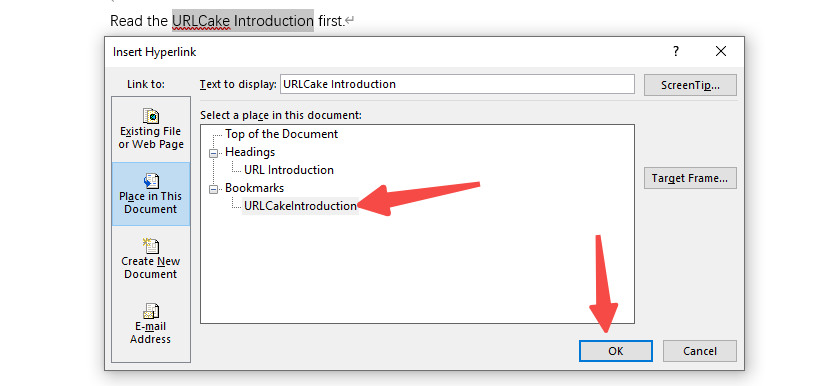
- Select OK.
The selected text now links to the bookmarked position.
Choose a Valid Bookmark Name
Bookmark names must follow Word's naming rules. In testing, entering a name made up of numbers, a name containing spaces, or a name with special characters caused the Add button to become disabled.
Use a simple name that starts with a letter and contains no spaces or special characters, such as Section1 or Chapter2.
Where Does a Bookmark Link Take You?
A bookmark link takes you to the correct bookmarked position. After clicking the link, the insertion point appears just before the first character of the bookmarked text. This is normal and does not mean the link has taken you to the wrong location.
Find or Delete a Bookmark
To find an existing bookmark:
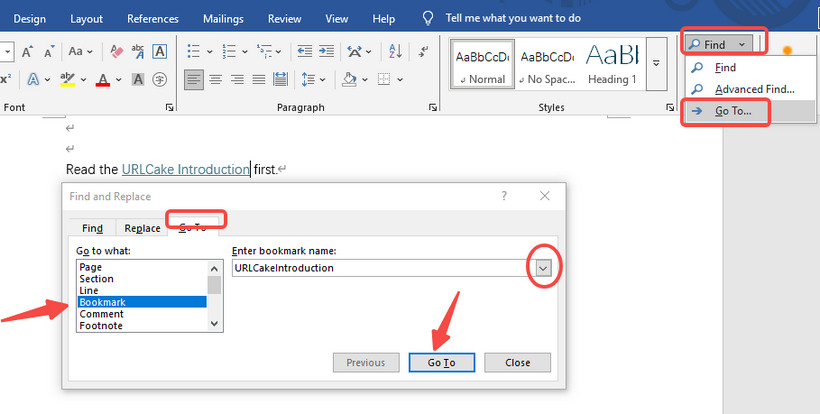
- Press Ctrl + G to open the Find and Replace dialog box.
- Select the Go To tab.
- Choose Bookmark from the list.
- Select the bookmark name and choose Go To.
To delete a bookmark:
- Go to Insert > Bookmark.
- Select the bookmark you want to remove.
- Select Delete.
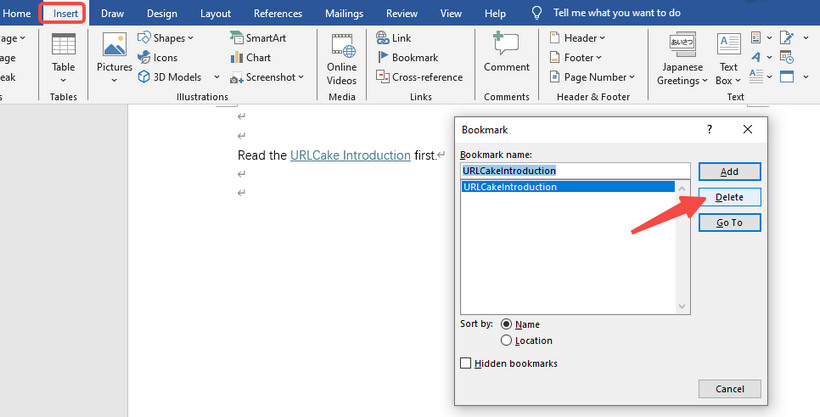
Deleting a bookmark does not automatically remove hyperlinks that point to it. In testing, clicking a link after its target bookmark was deleted took Word to the first line of the first page instead. If you no longer need a bookmark, remove or update the hyperlinks that point to it as well.
Changing a heading to normal body text does not automatically remove its bookmark. In testing, the bookmark link continued to work after the Heading style was removed. This is because the bookmark marks a document position independently of the heading's formatting.
How to Remove or Fix Hyperlinks in Word
You can remove individual hyperlinks, remove multiple links, or troubleshoot links that no longer work.
Remove a Single Hyperlink
To remove one hyperlink without deleting its text:
- Right-click the hyperlink.
- Select Remove Hyperlink.
Word removes the clickable link but keeps the text in the document.
Note: Removing a hyperlink also removes its hyperlink formatting. The text may return to the document's default font color. If you want to keep the text in its original color, select it and apply the desired font color again.
Remove All Hyperlinks
If your document contains many hyperlinks, you can remove them together.
- Press Ctrl + A to select the document content.
- Press Ctrl + Shift + F9.
This converts selected fields into regular text and removes their field functionality, including hyperlink functionality.
Stop Word from Automatically Creating Hyperlinks
Word can automatically turn typed website addresses and email addresses into clickable hyperlinks. If you prefer to keep them as plain text, turn off this AutoFormat option.
On Windows:
- Go to File > Options.
- Select Proofing.
- Choose AutoCorrect Options.
- Open the AutoFormat As You Type tab.
- Clear the Internet and network paths with hyperlinks checkbox.
- Select OK to save the change.
Word will no longer automatically convert newly typed internet and network addresses into hyperlinks under this setting. This does not remove links that already exist in your document.
Fix Broken Hyperlinks
If a hyperlink doesn't work as expected, identify whether the problem is with the destination, file path, or internal bookmark.
| Problem | What to check |
|---|---|
| Word displays "Cannot open the specified file" | Check whether the linked file was moved, renamed, or is no longer accessible. Update the file location in the hyperlink settings. |
| A website link doesn't open the correct page | Right-click the link, select Edit Hyperlink, and check whether the URL is complete and correct. |
| An internal link jumps to the beginning of the document | Check whether the target bookmark still exists. A deleted bookmark may leave the original hyperlink without its intended destination. |
| A bookmark link jumps to an unexpected position | Open the Bookmark dialog box and verify that the bookmark is still attached to the intended location. |
| Hyperlink text changes color after removal | The link formatting may have been removed. Apply your preferred font color again. |
For a file link, make sure the target file still exists at the linked location and that you have permission to access it. For an internal link, check the target heading or bookmark before recreating the hyperlink.
Frequently Asked Questions
Can I hyperlink text in Word without showing the URL?
Yes. Select the text, press Ctrl + K or Command + K, and enter the URL in the Address field. The selected text will become the clickable link.
How do I make a hyperlink clickable in Word?
Select the text or image, go to Insert > Link, enter the destination, and select OK. If an existing link doesn't work, check its address by selecting Edit Hyperlink.
Why do I need to press Ctrl when clicking a hyperlink?
Word uses Ctrl+Click by default in many desktop versions to prevent accidental link activation. To use a single click instead, disable "Use CTRL + Click to follow hyperlink" under File > Options > Advanced on Windows.
Can I link to a specific page in a Word document?
Yes. Create a bookmark at the target location, then insert a hyperlink to that bookmark using Place in This Document.